We remain fully operational. Our teams are working around the clock to ensure your deliveries continue safely.

DOWNLOAD THE APP


Customer Services
Copyright © 2025 Desertcart Holdings Limited
DOWNLOAD THE APP

🚀 Elevate your home Wi-Fi game—never miss a beat or a byte!
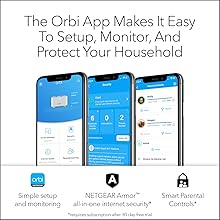
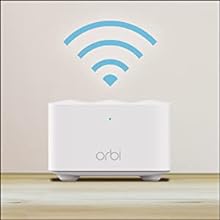
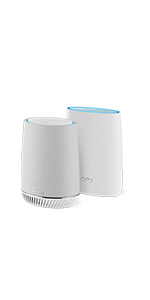
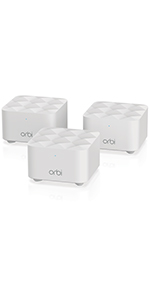
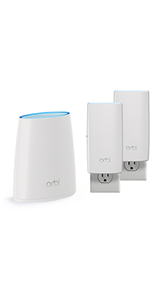
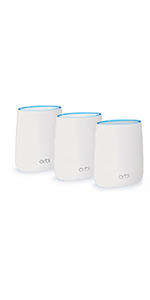
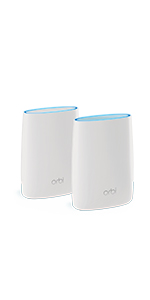
The Netgear Orbi RBK13 is a powerful mesh Wi-Fi system designed to blanket your home with fast, reliable internet across 4,500 square feet. Featuring a quad-core 710MHz processor and AC1200 Wi-Fi delivering up to 1.2 Gbps, it ensures smooth streaming, gaming, and browsing. Compatible with all internet providers and equipped with advanced security via Netgear Armor, it offers easy setup and seamless roaming under a single network name—perfect for modern connected homes.


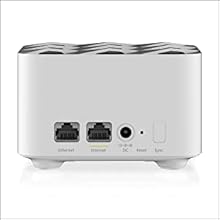

| ASIN | B07WTXG3XW |
| Batteries | 1 Lithium Ion batteries required. |
| Best Sellers Rank | #5,029 in Computers & Accessories ( See Top 100 in Computers & Accessories ) #124 in Whole Home & Mesh Wi-Fi Systems |
| Brand | NETGEAR |
| Color | White |
| Customer Reviews | 4.3 4.3 out of 5 stars (3,354) |
| Date First Available | October 14, 2019 |
| Item Dimensions LxWxH | 8.02 x 5.5 x 5.15 inches |
| Item Weight | 1 pounds |
| Item model number | RBK13-100NAS |
| Manufacturer | Netgear |
| Operating System | Netgear OS |
| Product Dimensions | 8.02 x 5.5 x 5.15 inches |
| Series | RBK13-100NAS |
| Voltage | 100240 Volts |
| Wireless Type | 802.11ac |
D**N
Easy setup and totally reliable
Connected my starlink to this and it works perfectly, super easy to setup as in DIY level easy. It's plug and play. the signal has been stable and i have zero complaints.
N**L
Impressive value for an entry level mesh router
I got the Orbi RBK13 as a solution for a family member who has experienced frequent problems maintaining a wifi connection throughout their home. They don't have the high end devices or a fast Internet connection so maximum speed was not a concern. They just wanted an economical solution that provided a solid wifi connection throughout their house. This Orbi does just that. Setup was a breeze although I chose to use the router's embedded web interface instead of the Orbi app. Kudos to Netgear for continuing to provide this option even though they don't mention it in the quick setup instructions. Download the owner's manual for all the details. You shouldn't have to install an app to setup your router and with this device, you don't. The satellites were pre-paired so it's as easy as logging into the router, going through the step-by-step setup process, and then turning on the satellites within range of the router. The web interface will show you when everything is connected. I was impressed by the range from the router to the satellites. The furthest satellite connected directly to the router without having to daisy chain through the nearer satellite. There are a couple of features that have caused confusion which has led to some bad reviews. First, during setup you'll be offered to setup Netgear's "Circle" Parental Controls. You have to use the app to do this, but you are not required to enable it if you don't need it. Second, you will be encouraged to activate a free trial of Netgear's "Armor" cyber-security suite. This is an optional free trial for a paid subscription service. If you do not want a comprehensive security suite you can simply decline to activate this service and use your Orbi like any other router. Demerits to Netgear for not making it more clear that you're not required to subscribe to this service. Finally, some users are confused about the nature of this device. By default, Orbi functions as an Internet router and completely replaces your existing router. Install Orbi in place of your router and recycle the old router. It is just as suited to that task as most consumer routers and it adds a very good mesh wifi on top of it. If you already have an advanced router and you want to keep it and add mesh wifi then you can put Orbi on your network behind your router and configure it as just a mesh wifi access point for your home network and Internet. In the Orbi menus, select "Advanced Setup" and then "Router/AP Mode" and select "AP Mode" instead of "Router." Disable the wifi on your existing router to avoid interference and connect to the Orbi access point instead.
K**R
Works great
Long time user of this product. Recent purchase was to expand wifi coverage at my home away from home
L**2
Works as advertised. Good product & we have great wifi coverage now
All the setup was easy. A little too idiot-proof & a little condescending but that is more a "me" issue ;) There is a bug when using the web interface, you cannot save the connected device parameters for the internal list. Operations & functionality are not affected but if you are a little OCD you won't like it. I have yet to see if a firmware update may fix the issue. When installing it automatically checks to see if a FW is needed (which is nice). A update was required on mine so the version that I was updated to during install doesn't have the problem fixed. I will continue to look into the issue.
D**E
Setup for Access Point mode poorly documented. confusing, and not working
Quick summary: Pretty disappointed. I purchased the product to act as a range extender for my AT&T Uverse modem/router, which Netgear claimed to be able to do in “access point” configuration. The actual setup instructions didn’t work, and the tech support was non-existent. I wouldn’t recommend this product for anyone without significant network experience, certainly not for a soccer mom, or even a DNA researcher. Not because it didn’t work (I eventually got it to work), but because the setup proceedure was vague, and incorrect leading to a tedius diagnostic process. Details below… I purchased this model because it was inexpensive, and allegedly suited my needs, which were to improve signal quality from my router (at one end of the house, as determined by where my TV is) to my home office, at the other end of the house, a floor up. I didn’t want a second network, or to change my network name (SSID for the cognoscenti) or password, which would have caused me to reset networking on multiple workstations, laptops, and printers. I would guess that this is one of two main reasons for purchasing this network mesh systems (the other being clean installs of a completely new network/computer system). I had also watched multiple third party Youtube video’s which gave the basics of how this system is supposed to be installed. The message is that in installing an Access Point configuration is different from a “router” configuration…because you have to deal with, in this case, ATT equipment. Basically, you have to turn off the ATT radio, and configure the Netgear equipment in “Access Point” mode. According to Netgear web additional info re Access Point configuration (Web page entitled “How do I set up my NETGEAR of Orbi router to work with AT&T U-vers?”) on the internet you have to: 1. Use a smart cell phone to use their setup wizard 2. Turn of the att radio by accessing internet address 192.168.1.254, then change settings in ATT’s router setup page, using a computer “connected to the network”. [What they really meant here was “hardwired via internet cable” to the network—there’s a big difference]. Step 2 has a lot of issues. First, since all the computers in my house are radio linked, turning off the radios immediately makes all computers unable to communicate with the internet, and thus unable to finish the setup—and unable to turn the radio’s back on. I was able to address the ATT web page, but the terms NETGEAR used didn’t actually exactly match the terms on the ATT page, so it was a little unclear what to turn off (the terms LAN and Wireless didn’t appear on ATT’s page in the order NETGEAR mentioned. The proper sequence was Settings, Lan, Wi-fi [not wireless])., Also, ATT demands an “Access code”, not either “user name” or “password” as NETGEAR’s documentation references). It would have been helpful if NETGEAR had pictures of ATT’s successive web pages and exactly what settings to change [do you turn off “guest”, too?] In words, the proper thing to change would be designated by “Under ‘User Network’, change ‘Enable’ to ‘Disable’. Ultimately I did turn off the radio’s, thinking that there would be some provision for the NETGEAR radio’s to take over. Wrong. Ultimately I realized that I must get a laptop with Ethernet port, and connect it with an additional Ethernet cable to the ATT equipment. THAT didn’t initially work because the laptop Ethernet had to be configured to use DHCP [dynamic addressing], which required going into the laptop’s Ethernet configuration menu, and changing the IPv4 mode to DHCP. This, then allowed me to access the internet, do do the next step 3. Access a website called Orbilogin.net to set the orbi device to Access Point mode. I was never able to access this address. I consulted another Netgear web page, which addresses the problem of what to do if I couldn’t access the page. They offered about 8 alternatives, all of which I tried, and none of which worked . Their last option was to reset the Orbi, and try the whole process again. Apparently, this isn’t a new problem. [I did, in the earlier setup, rename my Orbi router with my previous name and password. It is possible this somehow disabled Orbi’s ability to deal with my Orbi network—and made impossible to even get a web page at Orbilogin.net. I don’t know. But Orbi’s menu’s did offer me that alternative. Not being able to change the Orbi to Access Point mode, I was ready to give up. I looked for support. They had a phone number that didn’t work. Helpfully, they did prominently display an offer for support for a fee. OMDB. At this point, the internet wifi wasn’t working so I decided to return to my previous, pre NETGEAR configuration. The first step in this process was to (using the Ethernet cable from my laptop) reconfigure the ATT page to turn on the transmitters. Amazingly, this made the network work with much higher performance than my previous system, even though the NETGEAR hadn’t been configured to Access Point. It should have resulted in conflicting radios from the systems, which I’d imagine would make things not work. I suspect that the system is configured wrong, but since I’m only demanding 35Mbps (all that ATT provides here), it is possible that any conflict is being papered over. Bottom line: the system now works, but not without a LOT of hassle, mostly due to incorrect documentation, absent web sites, and unusable support. You definitely need a laptop with Ethernet port properly configured, an extra Ethernet cable, a smart phone, some network knowledge, and willingness to stick your fingers in normally untouchable parts of your computer settings.
P**O
Great Product - Stablizied WiFi At Home!
Easy setup with the app, strong WiFi in the whole house now, cannot recommend it enough!
N**R
Works well
For a non tech person like me, this system was easy to set up, it works well and definitely increased our WiFi coverage throughout our home, especially in the basement
M**S
Works perfectly
Very easy and following the instruction, the setup was as expected. Now enjoying fast wifi thru the whole house. Recommended
C**S
Why is this item taking so long is it cause that its out stock
A**R
The product started out good for the first year or so.. but after the warranty period ended nothing but trouble. the product keeps asking to reset the password to remote in to see wifi status via the app constantly dropping.. I had to create a backup SSID on my main router due to this dropping issue (what's the point of doing this when you have a Mesh!!!! :( ) overall experience is not good... Going to try one of these others - Dlink, TP-Link or Linksys... buyer beware......
M**H
المنتج مقبول. يفصل بشكل دائم للنقاط البعيدة.
Trustpilot
4 days ago
2 days ago