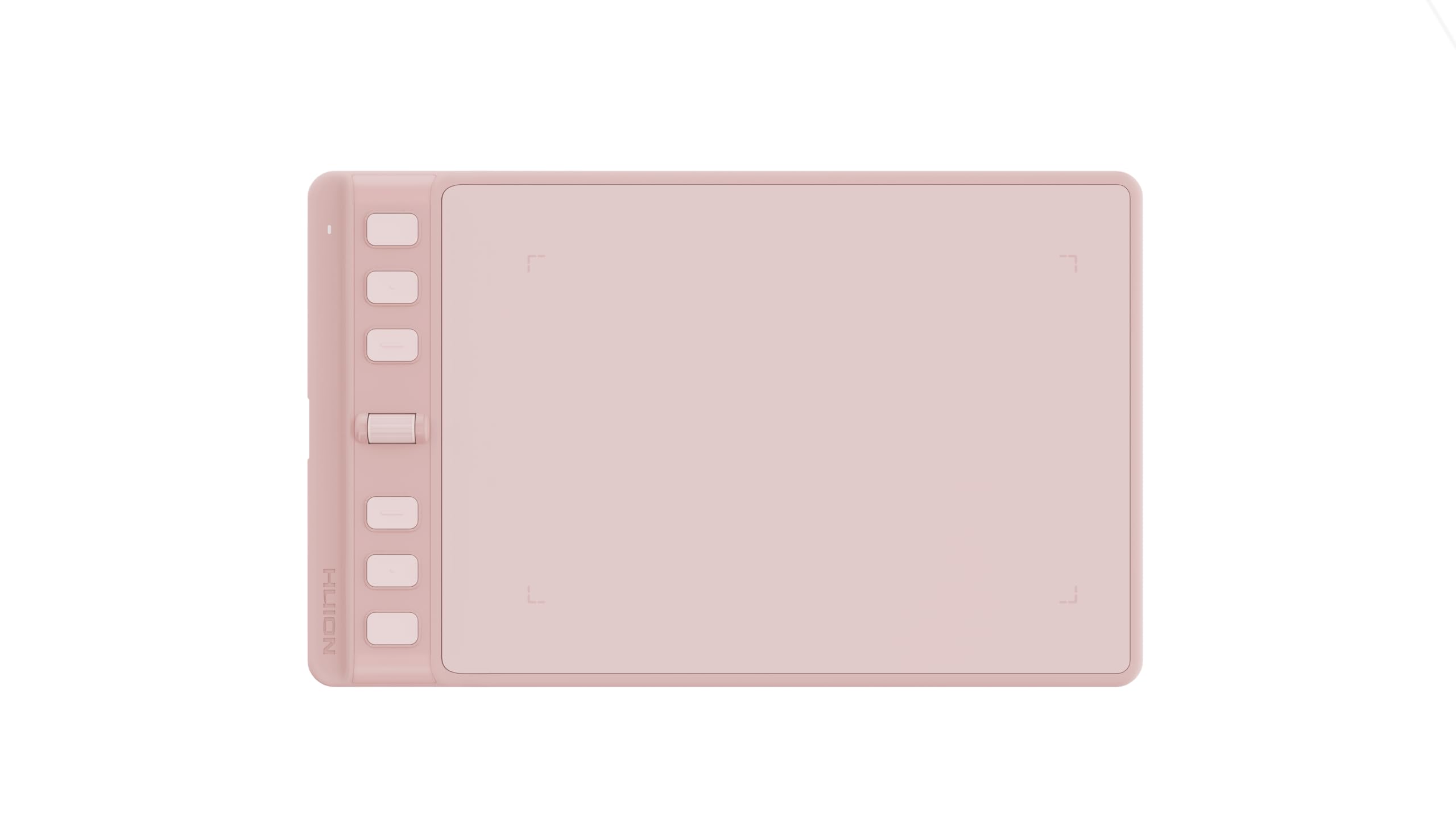




🎨 Elevate your digital art game with precision and style!
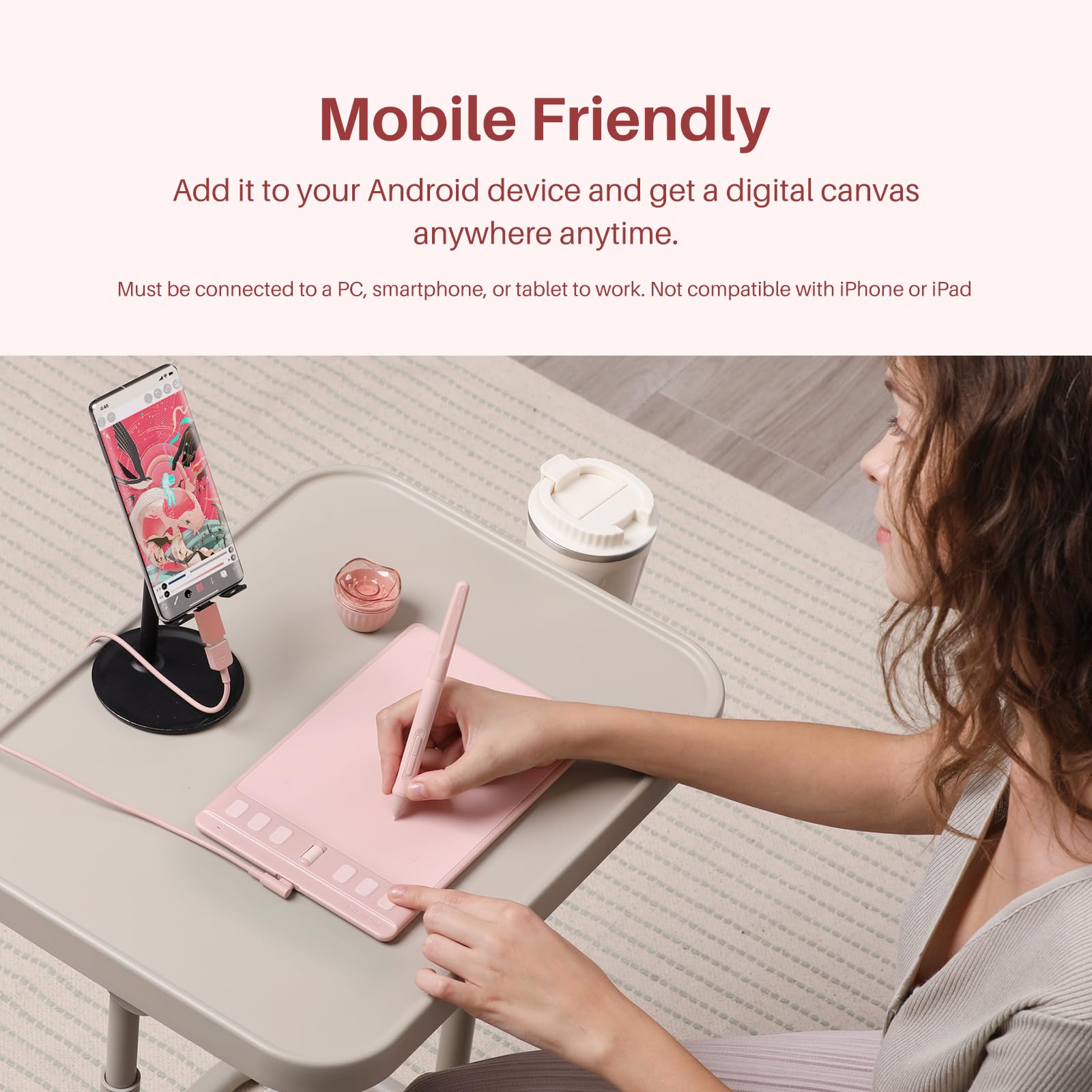
The HUION Inspiroy 2 Small Drawing Tablet is a sleek, portable digital art tool featuring PenTech 3.0 for precise, lag-free pen input, a battery-free ergonomic stylus, and 6 customizable hotkeys plus a scroll wheel for enhanced workflow. Compatible across Mac, PC, Linux, and Android devices, it’s designed for artists, designers, and professionals seeking a versatile, efficient creative companion on the go.


| ASIN | B0BMLC3YMZ |
| Best Sellers Rank | #97,348 in Computers ( See Top 100 in Computers ) #311 in Graphic Tablets |
| Item model number | H641P-Pink |
| Manufacturer | Shenzhen Huion Animation Technology LTD. |
| Product Dimensions | 24.1 x 15.2 x 0.8 cm; 275 g |
B**T
a great starter tablet! it works perfectly on my macbook and even comes with a super cute pen stand! it’s super portable and fits well on my desk! would 100% recommend to anyone looking for an affordable cute tablet! :D
S**A
Estou apaixonada pelo produto ☺️✨🌈 Ele funciona perfeitamente no meu celular e notebook, a pressão é boa e as configurações dos teclados auxilia bastante na hora de ilustrar. Fiz esse desenho teste só pra me acostumar com os atalhos novos, é tão bom. SÓ TENHO UMA RECLAMAÇÃO que foi o fato de ter sido enviado por PAC Correios, isso demorou demais a chegar e atualizar no app. Eu pagaria mais caro pra chegar mais rápido, deveriam me dar essa opção no momento da compra.
D**.
Amazing!! Would buy again as gifts love it thank you huion!
R**N
Best value pad tablet for art. Scroll wheel for zoom in/out and six express keys and good matte surface finish for the pen to write on
S**T
I I Note that I previously had installed the larger 1060P version. I wasn't happy with that due to unstable software and black on black keys I couldn't see in my dimly lit work area (so I can see the PC screen better). One issue I had right up front was that the icon I was expecting to bring up the customization menu just brought up the install panel. So, I reinstalled it, which then brings up the customization menu until I log off my PC or close panel. I set one of the buttons to bring up the customization panel, since I never could get the icon to do anything but reinstall the driver. That fixes the issue, but uses up 1 of the 6 buttons. As for the device itself, it seems decent, but the ON light only gets slightly brighter when you bring the pen in range, so you have to watch it to see the transition. The best part is the wheel, which acts as 2 buttons, such as PAGE UP and PAGE DOWN (you can set which) and you can more easily control the speed it rotates than hitting a button repeatedly. Works great for vertical scrolling and zooming. I just wish there were more wheels, so I could do other things, like horizontal scrolling and panning. (I'd put the other wheel at a right angle to the first.) I have an issue with hand strain, so I set pen to click at the lightest possible touch. Unfortunately, this often results in double or triple-clicks. I haven't found a setting to avoid this, either in the customization panel or in Windows 7. Best I could do is set a key to the KB Escape key, so I can hopefully hit that to get out of whatever that extra click did. That's 1 of the 6 buttons (8 f you count the two on the mouse) used up. There's a pop-up "Virtual Keyboard" available with 24 programmable options. They can allow for a paragraph of text each, which might be good for standard disclaimers, etc. ("Do not use if allergic to plutonium or yak feces"). However, I didn't find it very useful. First, it's too big, even on the smallest size, and blocks too much of the screen. They have transparency options, but that makes it hard to see. Then, clicking on a virtual button seems to take the cursor focus away from the text window where I wanted the info typed. Instead it goes into the cut buffer. I can then click on the text window again and do CTRL V, but that requires the real keyboard (I suppose I could program a hardware button as CTRL V, but then that and the Virtual KB would take up 2 of the 6-8 buttons). Then, after clicking on a virtual button, you still have to close the virtual keyboard window. So, unless you regularly type the same paragraph of text and have no other easy way to do so, this option seems like more trouble than it's worth. BTW, this unit does not work with the 1060P installed, I had to uninstall it first. And the pens are not interchangeable. They really should provide a spare pen, not just nibs, as this device is useless without the pen. Speaking of the pen, I find the stand unusable, since my cat would carry the pen away in her mouth. I wrapped a small bungee cord around the device, instead, and restricted the usable area so I don't need to go there. When not in use, I tuck the pen under the bungee cord. I also added a shirt clip to the pen, so I can carry it in my pocket. One interesting difference between this and the 1060P, is that the 1060P uses relative coordinates, while this device uses absolute coords. The difference is that if you pick up the pen and put it back down somewhere else on the 1060P, the pointer on the screen doesn't move, while with this device, it does. Each has it's pluses and minuses. If you want to trace an image, say on a post card, you want absolute coords. But relative coords is how a mouse works, and is more intuitive and requires less hand movement. I found it was less annoying on this device if I set a tiny active area. If I ever want to trace something, I will set it to the full working area. I wish both tablets had a setting to change between absolute and relative coords. As for Android, I see no point in using either this or the 1060P with those cell phones. Neither the buttons nor wheel work with Android, and the results aren't as good as just drawing with my finger on the Android screen. And it doesn't work, when editing text, to click where you want to insert text. it just jumps to the end of the line. Maybe that is fixed in a later Android version, but as of Android 11, it's useless. So, to summarize, I find this more useful than the larger 1060P, as I can actually see the buttons and LOVE the wheel. If they made one with multiple wheels, I'd love it even more. I use it as a point-and-click device, though, not for drawing, where the larger tablet may be more advantageous.
ترست بايلوت
منذ أسبوعين
منذ أسبوعين


