
قم بتنزيل التطبيق


معلومات عنا
حقوق الطبع والنشر © 2024 Desertcart Holdings Limited
قم بتنزيل التطبيق
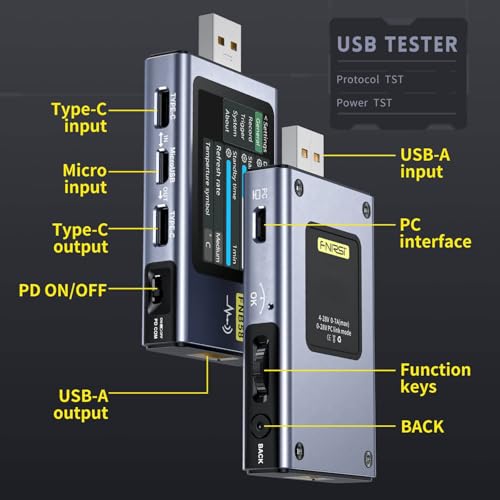


⚡ Power up your tech IQ with FNIRSI’s ultimate USB tester!
The FNIRSI USB Battery Tester FN B58 is a compact, multi-port digital voltmeter and ammeter designed for professionals and tech enthusiasts. Featuring a 2.0-inch TFT display, it supports USB-A, Micro-USB, and Type-C interfaces, accurately measuring voltage, current, power, capacity, and ripple with a 16-bit ADC. It auto-detects and triggers multiple fast charge protocols including QC, PD, VOOC, and more, while offering Bluetooth app connectivity for real-time data tracking and firmware updates. Lightweight and precise, it’s ideal for diagnosing USB power delivery and battery health with ±1-2% accuracy.


| ASIN | B0BJ253W31 |
| Are batteries included? | No |
| Best Sellers Rank | #12,484 in Industrial & Scientific ( See Top 100 in Industrial & Scientific ) #222 in Voltage Testers |
| Brand | FNIRSI |
| Colour | multi-color |
| Customer Reviews | 4.5 4.5 out of 5 stars (402) |
| Date First Available | 29 October 2022 |
| Generic Name | battery tester |
| Included Components | 1 Electric Circuit Testing Device |
| Item Weight | 45.4 g |
| Item model number | FNIRSI-001 |
| Manufacturer | FNIRSI |
| Maximum Operating Voltage | 28 Volts |
| Measurement Type | Battery Tester |
| Min. Operating Voltage | 4 |
| Model number | FNIRSI-001 |
| Number of Memory Sticks | 1 |
| Package Dimensions | 11.5 x 8.5 x 2.4 cm; 45.36 g |
| Power Source | USB Powered |
| Specification Met | Ul, Iec |
| Style | Digital |
| Upper Temperature Rating | 40 Degrees Celsius |
A**R
Best for price, better than impoprting.
Best for price, works as intented. Make sure to use input for input only, and same for output. Flickers a bit when undervolted. Firmware update make sit work more good. Bluetooth app by FNIRSI works only after GPS is turned on and pairs only via app. Its weird n unnecessary yet ok. Accuracy is fine maybe 1-2% vary.
N**O
Awesome usb type c tool
I needed something to check the hardware side projects i create where I power then with type c decoys. This board helps me quickly diagnose and failures in design and is able to trigger output voltages for different type c spec level. The graph over time and stats feature is really useful and i am currently using this with the desktop app which is working flawlessly.
R**D
Best quality
Most useful product , for our work it is too useful.Thank you
M**E
Quality
Superb
A**.
Doesnt display mah which is what i needed this for. Displays absolutely everything else but. Annoying it doesnt show basic mainly used use case of battery capacity, but makes you work it out from other measures. Has many screens, not on any of them, cannot set it to display mah, very hard to use overall vs many other similar products - so expensive and got a lot of stuff i dont need with it, and not the basic function i do need.
J**A
Excelente producto superó mis espectativas
R**H
After spending a week learning about and experimenting with this FNIRSI FNB58, I've found it to be a very valuable tool for testing, sorting, and upgrading USB hubs, power supplies, and cables! It is especially useful for learning about and testing the newer USB 3.2 capabilities, power options, and especially what Type-C cables will and won't work for the new Power Delivery (PD) and Fast Charge features! But the official FNB58 manual available is worthless, due to lack of detail, poor organization, and lousy translations. It's hard to figure out what practical purposes this great tool has for home use. So here are some of the most useful features I've found from my testing. • Basic Monitoring: Using the USB-A or USB-C input/output ports, the screen will display voltage (V), current (A), power (W), and protocol in real-time, as dynamic numeric data or “oscilloscope” graphs. • Read USB-C Cable E-Marker Chips: Higher-end USB-C cables have an embedded IC chip that reports capabilities of the cable to the PD power source. This allows the power source to provide higher voltage and wattage through the cable for higher-powered devices, up to the limits of the cable. If there is no chip in the cable, your expensive new USB power adapter will only be able to supply up to 60W of power instead of the 240W you paid for! Do you know which of your cables will work for your higher power laptop? The “Toolbox” option “USB-C Cable” quickly and easily reads this chip, if present, so you'll know what that cable supports. • Fast Charge Triggering (Protocol Test): Navigate to the “Fast Charge” menu to test for USB charger capabilities, like PD, Apple, Battery Charging (BC), Samsung, Huawei, or QC (Qualcomm) fast-charge protocols. Once capabilities are detected, higher-voltage power protocols can be triggered, changing the output voltage and current settings on the USB power wires. Warning: Do NOT connect sensitive, non-fast-charge devices when triggering higher voltages (9V – 20V) as it can damage them. Some of the protocols (like the PD or QC 3.0) have variable voltage adjustments, so you can set the output voltage to anything between the protocol limits (like 3.3V-20V) in 0.02V increments. You can thus even use the FNB58 and an appropriate charger as a variable power supply for small low-power projects! • Cable Resistance Testing: On the "Toolbox" menu option, the "Cable Resistance Detection" feature can measure the resistance of a connected USB cable. For most accurate results, a separate constant-current electronic load device, like the Drok USB Load Tester, is required on the output of the FNB58. • Offline Recording/Data Logging: The FNB58 has options for recording power consumption over time. This allows testing of possible intermittent problems. The photos here show the results of some of the testing I've done with the FNB58. The "USB-C Cable" screen photo shows the results of testing a USB Type-C cable that DOES have an E-Marker Chip embedded in the cable's connector. Plug the Type-C cable to be tested into either the Type-C “IN” or “OUT” port. Only one end of the cable needs to be plugged in for this test. Use the rocker switch on top to navigate to the Application page. Select the Toolbox option, then select “USB-C Cable” (or “USB-C E-Marker” on earlier firmware). This will display the values embedded in the cable’s E-Marker chip, which provides the USB power source with the capabilities of the cable like cable speed (example: “USB 3.2 Gen2”), cable length specification, max cable voltage and current, hardware and firmware levels, and cable vendor ID. If the cable can handle it, the power source may select higher voltage and power for higher-powered devices. Without this chip and the resulting negotiation with the power source, output is limited to 60W (some USB power sources have the option of providing up to 240W). The image with three screen-shots shows the different capabilities between ports on the same charger. Chargers often support different USB power protocols and protocol values, depending on the port being used. For example, this photo shows three USB-C ports (C1 – C3, top to bottom) on the same charger, each with a different set of protocols and supported voltage/power values. Note the discrepancy between the label on the charger (last photo) and the values being read by the tester. When triggering the protocols (see below), what I was able to get out of the charger were the voltages listed on the tester, not always what was printed on the back of the charger. Some of the values are limited because of the standard for the protocol, like the BC 1.2 (DCP), which limits the output to 5V at 1.5A. But the labeling on the charger can mislead you about what output you’ll actually be able get from it! The FNB58 "Fast Charge" option's "Automatic Detection" feature displays the power source's supported protocols, and their voltage limits for each USB port. This also helps clear up some discrepancies between the charger's specs and the actual port output. The image with the multi-meter at the top shows the results of one of my power source output tests. Once the available fast-charge protocols have been detected (like above), you can "trigger" any of the protocols with the FNB58, to set a specific output voltage. I did physically test the output of the charger after triggering the protocol, to verify the charger actually did change output voltage. My multi-meter tests correlated closely to the output voltages shown on the tester after triggering the protocol settings. The voltage manually selected in the tester is shown outlined on the left of the tester’s screen (10.00V here). The actual voltage as measured by the tester is shown with the green background on the screen in the upper right (10.239V here). The external voltage measured by the multi-meter here is fairly close, at 10.28V. Each protocol has different voltage selection options. To test these, navigate to the Application page of the FNB58, select the Fast Charge option, then the PD Trigger option. BE CAREFUL, this can damage some devices connected to the output of the tester - read the on-screen warning, and read the manual! See the end of this review for some links to helpful supplemental information. The final "Qualcomm QC2.0" screen photo shows voltage selection options for this protocol. Most protocols have only certain fixed voltages available too, so the Fast Charge option for each of the other protocols shows only those voltages available for activation. I hope you find some of this information useful!
A**.
I am providing an overall comment for three USB testers, all of which deserve to be purchased as they complement each other perfectly and are consistent in their results. I would like to dedicate the majority of this review to the Bit Trade One model, which has recently arrived on Amazon. It deserves a shoutout because the tool is exceptional and inexpensive for what it offers. The ADUSBCIM is a USB cable tester that truly complements traditional USB cable testers. Only the cable to be tested needs to be plugged into the A and B ports, and the tool does the rest. The reference value for calculating the cable's resistance is taken using a CR2032 battery, and I note that the calculation is very precise and stable. You can find on Bit Trade One's ADUSBCIM GitHub page, in the Pull Request section, a manual in English in PDF format. This is my small contribution to the project, as the current official English manual is more of a word-by-word description that is difficult to understand. Thanks to this tester, I discovered, for example, that Anker cables, the 765 series, were actually poor high-resistance cables, and that I had much better options for charging. I ended up wasting money on cables that turned out to be slower than cables that were given to me for free with computer accessories. The FNIRSI FNB58 is a very comprehensive USB-A and USB-C port tester. It notably offers numerous rapid charging protocol tests, can test the quality and resistance of a cable, and obtain oscilloscope-like graphical representations. Now that we are on PD3.0 and with PD3.1 approaching quickly, owning one of these tools is now essential to validate the proper functioning of an installation. I've read a lot of advice on Reddit, and if you're looking to equip yourself with the best products offering the most testing possibilities, here are the tester references to get: - Bit Trade One ADUSBCIM (very thorough cable tester testing all the lines of a cable) - FNIRSI FNB58 (the most comprehensive, many ports, many scenarios, USBA/C Micro) - ChargerLab KM003C (the most modern, TB4, 250W) If you have these three or at least a combination of the cable and usb tester, it will take you no more than a few days to become a USB expert. 👌
C**U
Vi varias reseñas en YT y todas apuntaban a este medidor de entre muchos. Hace la función y adicionales pero la calidad de fabricación externa se siente algo barata.
ترست بايلوت
منذ شهر
منذ أسبوع