📹 Elevate your remote meetings and distance learning with pro-grade clarity and flexibility!
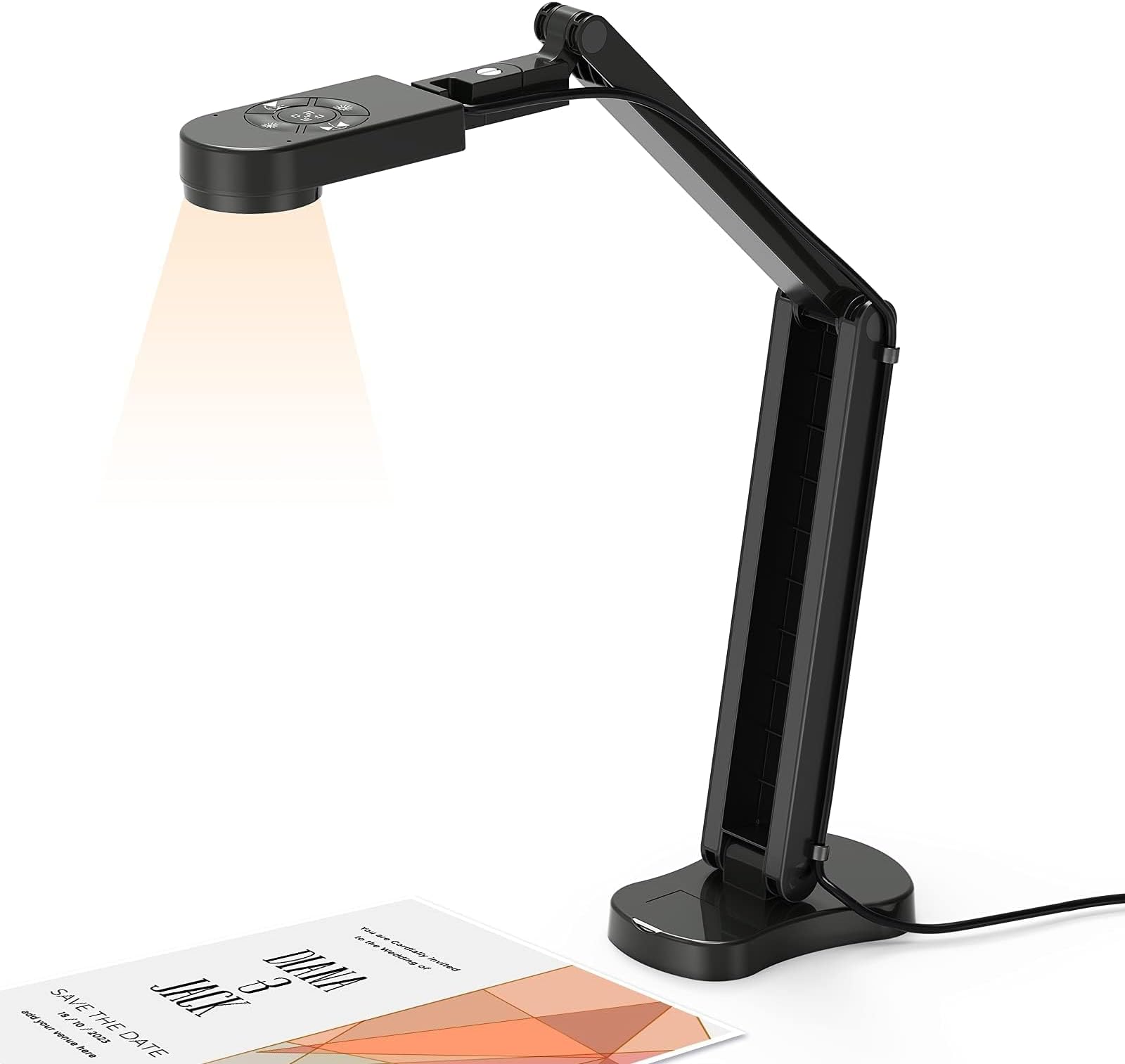
The Kitchbai 8MP Document Camera is a versatile 4K USB webcam designed for distance education and professional presentations. Featuring adjustable image inversion, 3-level LED lighting, and a foldable multi-angle stand, it captures ultra-clear images and videos up to 2448P at 30fps. Compatible with Windows, macOS, and Chrome OS, it supports popular video conferencing platforms and includes dual noise-reducing microphones for superior audio quality.


| ASIN | B0BB2Q8RK6 |
| Best Sellers Rank | #7,534 in Computers ( See Top 100 in Computers ) #60 in Webcams |
| Item model number | KB-700 |
| Manufacturer | kitchbai |
| Product Dimensions | 12 x 6 x 57 cm; 880 g |
I**A
Great camera
I am happy with the camera
D**R
Sehr gut. Verbindung in Teams klappt super.
O**R
La información erá un escáner y no es así, sólo es una cámara web y ni siquiera viene completa, le falta un control remoto y más botones en la base.
L**S
The packaging for this camera sets the tone - the setup instructions are printed on the outside, no need to dig for the manual. I've been using it to photograph documents and also record "first looks" at game books, recording via OBS. It works brilliantly. The focus button is quick and remains locked after use and the 3 stage ringlight around the lens gives great, even illumination with little to no glare on anything but the shiniest surface. As promised, you can mirror the image two ways using the buttons on top of the unit, and adjust the light in the same way. The ringlight was the only point where I had to double-check; you can adjust the brightness on the top buttons, but to turn it on or off you need to tap the printed fingerprint on the light itself. Not a problem once you know, but if you assume that increasing the brightness starts from 0, you might make the same mistake I did and start worrying because the top light buttons aren't doing anything. Overall this is highly recommended for anyone needing to photograph documents or record your literal desk/tabletop. It even works very well as a webcam for videoconferencing, but is high res enough to be unforgiving if you're not in full makeup :) This is a lovely piece of kit, and all that remains is for me to source a cover to sit over the camera for transport and privacy.
L**1
Mi hijo necesitaba un escáner práctico, multiusos y que pudiera llevar a todas partes. Así que nos decantamos por este modelo y está muy contento con él, porque no solo puede usarlo como escáner, sino que además hace fotos, vídeos y se puede utilizar como pizarra, cuando abres el programa "cámara" que por defecto viene con windows en el pc. Su manejo es muy intuitivo. Después de estirarlo para escanear, en la parte de arriba, por abajo, tiene una luz, que se puede encender y cambiar a más o menos iluminación según sea preciso. En la parte superior hay un comando de mandos, el del centro sirve para enfocar y los de los lados para mover hacia un lado u otro la imagen en el pc. Los de la parte superior e inferior también sirven para regular la iluminación. El uso es sencillo, hay que enchufar el escáner al pc, en mi caso es windows, pero también sirve para apple. Una vez encendido, se busca en windows la opción "cámara". Una vez que ya tienes preparado el documento en la mesa, comienzas el proceso de centrado. Esto cuesta hasta que te haces al aparato, pero en las instrucciones viene el enlace a un vídeo donde se muestra el funcionamiento, aunque no es demasiado claro... Una vez que ya aparece todo el documento en la pantalla del pc, puedes hacer foto, vídeo, escanearlo o incluso utilizar como pizarra interactiva. Desde luego, para su precio y lo pequeño que es tiene muchas funciones. Además, desde la tienda me han enviado unos consejos de uso, porque, como digo, al principio cuesta un poco hacerse con el uso, que os pongo por aquí para que sirva de ayuda: Te compartimos algunos consejos, puedes seguir los pasos a continuación, gracias. La cámara de documentos se instala automáticamente con el controlador, solo necesita conectar la cámara de documentos a la computadora, luego abrir el software correspondiente y seleccionar "Cámara USB" para usarla. En general, existe una variedad de sistemas informáticos, y los métodos para utilizar estos sistemas son los siguientes: 1. Sistema Mac: 1). Si necesita grabar un video, busque "Quick Time Player" en su computadora. 2). Si necesita tomar una foto, busque en su computadora "Photo Booth" 2. Sistema Windows 10: puede abrir directamente la "cámara usb" que viene con el sistema para usar. Si su computadora es una computadora portátil, también debe seleccionar "Cambiar cámara" en la esquina superior derecha de la computadora portátil. 3. Sistema Windows XP/7/8 y otros sistemas: si su sistema no puede encontrar ningún software, consulte la página 7 del manual "Sistema Windows XP/7/8", contáctenos, le enviaremos el software. Si no conoce el método de operación, puede ir a You-Tu-be para buscar "Kitchbai Document camera - MacBook operation method" o "Kitchbai Document camera - Windows 10 operation method" para ver el video.
J**N
Very impressed with how well this works. I bought it as a backup for an Epson document camera that was glitching, but when I tried it out, I instantly replaced it. It's so much better than the Epson 800 series, and doesn't need an extra power source - uses power through USB. Works better than the Epson, especially in low light conditions. Would highly recommend.
ترست بايلوت
منذ أسبوعين
منذ 3 أسابيع